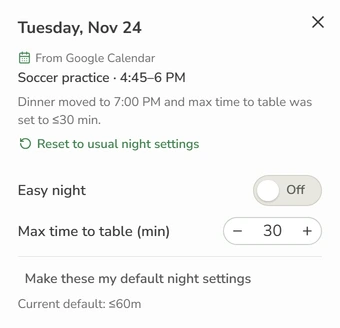
On the Essentials or Complete subscription, you can share events from the Google calendars you choose. DinDin can use them to adjust dinner time or the cooking limit on nights you haven't planned yet.
Pick what DinDin can read
- Open Settings, then Calendar Sync. Tap Set up Google Calendar Sync and then Connect Google Calendar on Google Calendar. If already connected, use Manage Google Calendar Sync to change your choices.
- Choose Plan around my Google Calendar. You can also choose Send my dinners to Google if you want your dinner events there.
- In Calendar access, choose Busy times only to share when you're busy or Event details to also share event titles.
- Tap Continue to Google and give DinDin the access you want. Select the calendars to use and tap Save.
After setup, use Calendars to plan around to change which calendars DinDin reads. Choose Switch to busy times in Calendar access if you no longer want to share titles.
Let events guide open dinners
Use Plan around my schedule to use your calendar for planning. Turn on Adjust open nights around conflicts to let DinDin shorten the cooking limit or move dinner later when a busy evening calls for it. You can keep sending dinner events to Google with these adjustments off.
With Event details, a title can add context or give DinDin enough information to add a placeholder. You can decide whether to skip a meal. Calendar events leave a night alone once you've planned it or changed its settings.
Check or change a night
Select the Google event at the bottom of a day in Month or Plan to open Night settings in the Day Plan. To use your usual times again, open the night's settings and tap the reset button for that day, such as Reset to usual Thursday settings.