Publish from Recipes when you have a recipe you have the right to share. DinDin makes a separate copy for your cook profile.
Choose access and publish
- Open More actions on the recipe card and tap Publish.
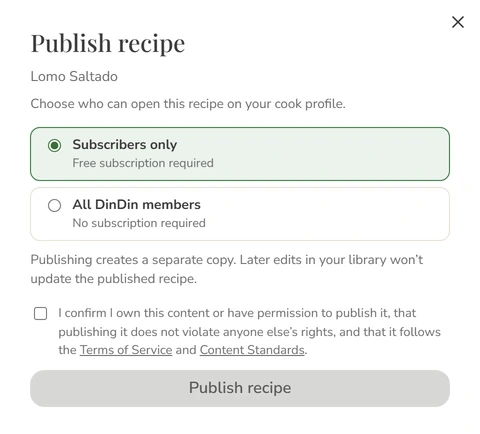
- Choose Subscribers only to require a subscription to your cook profile. Readers subscribe for free or pay depending on your offering. Choose All DinDin members if you want any signed-in member to read the recipe.
- Tap Publish recipe. Check the serving notes before you confirm Publish.
If something is missing, use Edit recipe to add it. If your profile is offline, open its cook settings to put it online.
Manage a published recipe
Use Manage publish settings on the recipe to change its access, then tap Save changes. In Cook Profile, open Published recipes and use Hide from profile to keep the copy for later. Remove published recipe deletes the published copy. Your library recipe stays in place.
Check your limits
A free cook profile can publish up to 100 recipes. A paid cook profile can publish up to 250 recipes for all members and additional recipes for subscribers. If you reach a limit, take a recipe down or, on a paid profile, change an all-member recipe to subscriber access.