Use Finish my week to fill open dinners on the Essentials or Complete subscription. On the Complete subscription, it can also fill breakfasts and lunches you plan ahead.
Start a run
Planned dishes, skips and placeholders stay in place. If a meal is open for some people, DinDin can fill it for those people.
- On Calendar, open Plan and choose Overview for the week you want.
- Check Open slots, Recipe sources and Current options. DinDin starts with the Ready List, due repeats, saved recipes and recipes from cooks you follow. It can also write recipes if you allow it.
- Tap Finish my week. It starts right away with the settings shown.
Change what a run can do
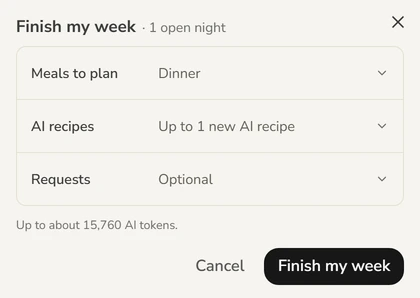
Open Options… to choose which meals DinDin fills, what recipes it can use and whether it can write anything new.
- Meals to plan lets you leave meals out of the run. Under Recipe categories, choose the kinds of recipes each meal can use. Pick at least one for each included meal.
- AI recipes sets how many new recipes DinDin can write for each meal. Allow up to sets the most. Require at least sets the fewest. With a maximum of zero, it reads Saved recipes only.
- Requests tells DinDin what you want this week. For example, ask to use spinach and leave Friday dinner open.
Check the AI token estimate before you run. Planning needs enough tokens even if you choose Saved recipes only. Tap Save settings to keep your changes, or Cancel to leave them as they were. Saving doesn't start a run.
Use the rest of an ingredient
DinDin can help use up a perishable ingredient by choosing two dinners that both need it. For example, tacos and a salad could both use cabbage. Check the amounts in the recipes against what you have.
Review the week
Keep the page open while it plans. You can tap Minimize planning progress and reopen the run to see what was added. Tap Done when you've finished reviewing it.
In Overview, check why DinDin picked each dish. If a meal is still marked Open, check the reason. You can ask for a different pick without running the whole week again.
The progress indicator shows the active step, such as finding options, choosing meals or writing recipes. Meals using saved recipes can appear while new recipes are still being written. If a meal stays open, the result gives the reason when available. Tap the Review button for that day to open the meal and choose what to do next.