Use Pantry to track which staples you have. When a recipe calls for one you marked in stock, it can appear under Already on hand in Groceries. Check how much you have before shopping.
Set up your list
- In Pantry, open About your pantry, then Review preloaded pantry items. Remove any starter items you don't normally keep.
- To add staples, tap Add items, enter one name per line, then tap Add items again.
- Use a staple's stock control when it runs out or you buy more.
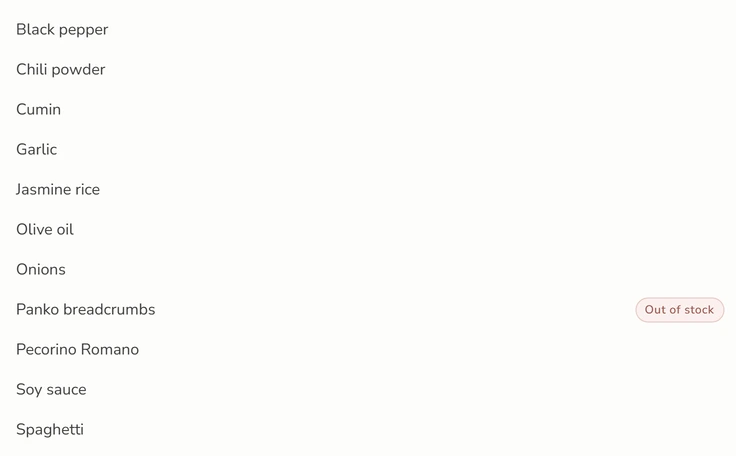
Turn on the restock option in Groceries to include shortages alongside ingredients from your recipes. Use Out of stock in Pantry to see shortages together and Mark all back in stock only when the visible staples have all been replenished.
Find and organize staples
Search by name or use filters such as Group, Date Added or Source. Use the sort control and choose View by category (aisle) or View all to change how you browse. If nothing matches, Show all items clears the search and filters.
Tap an item's name to rename it, or use Move to category to choose a different aisle. Use its remove control to stop tracking an item.
Change several at once
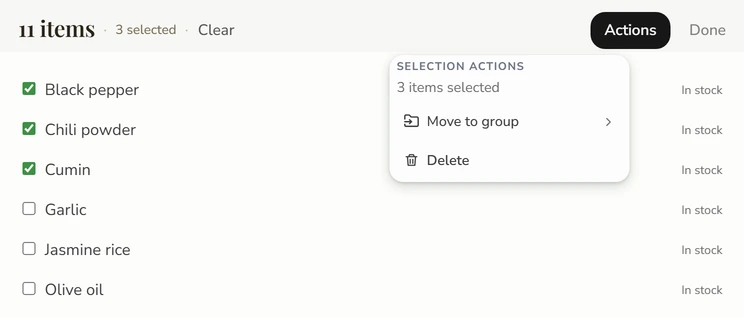
- Tap Select and tick the staples you want to change.
- Open Actions and use Move to group to choose a new aisle, or Delete to stop tracking those staples. These choices apply immediately.
- Tap Done. Use Undo if offered after deleting. Use Undo or Redo in Pantry for supported changes.